
Home / Guides
Guides for Divi Gallery Plugins.
Step-by-step guides to help you get the most out of our Divi gallery plugins — from setup to advanced customization.
— Step No. 1
How to install plugin.
After getting the plugin’s ZIP file, use the following steps to install it:
1) In the admin, go to Plugins and click Add New.
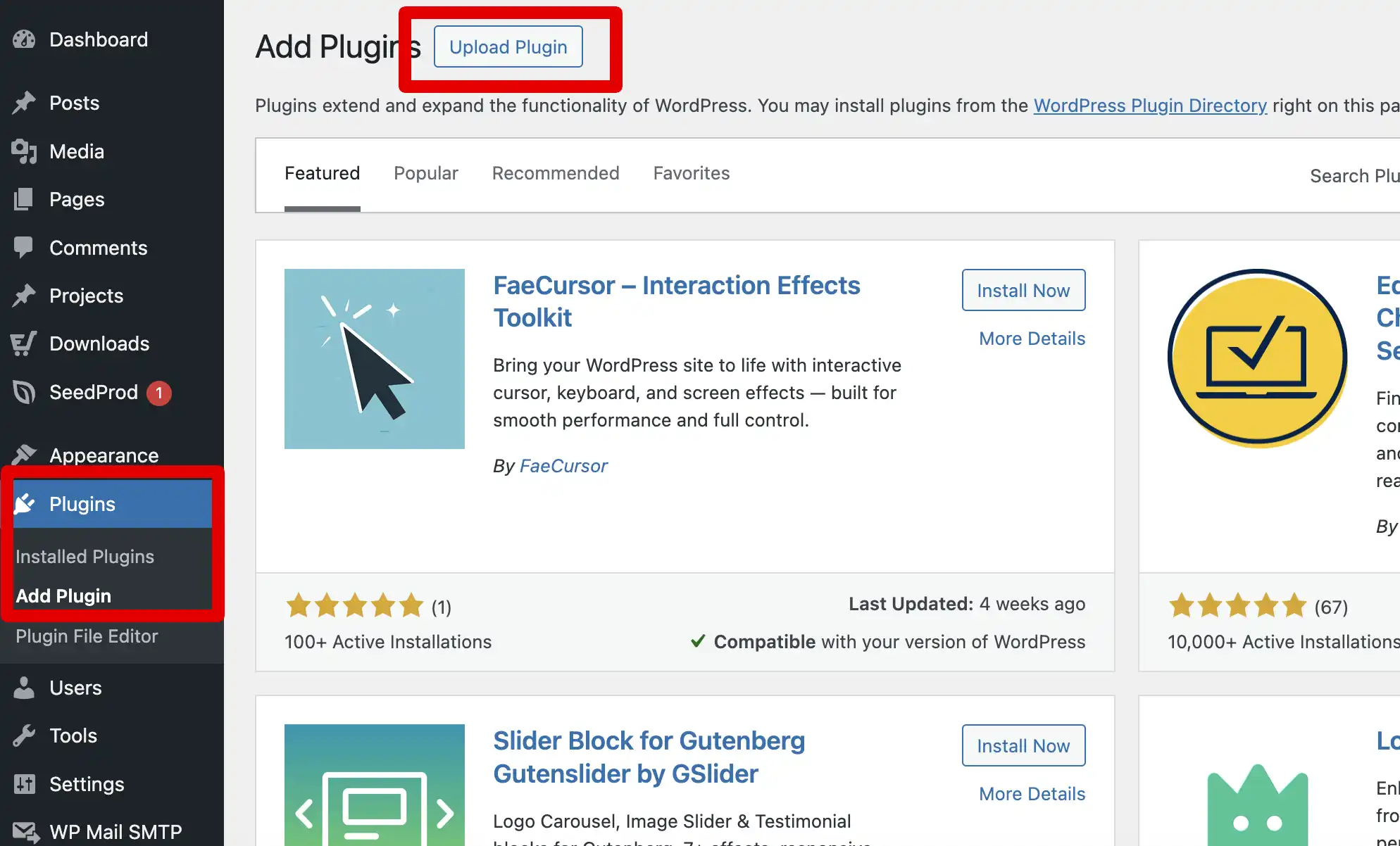
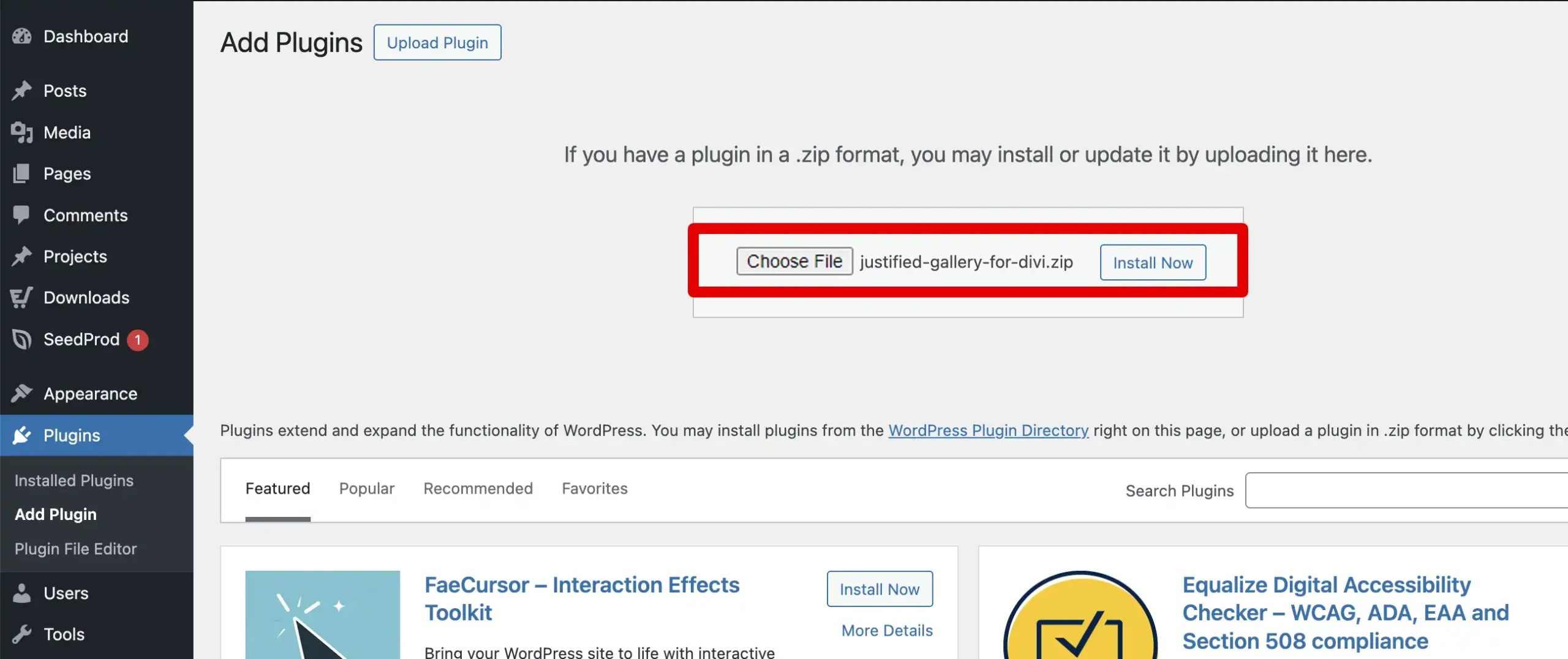
2) Click Upload Plugin, then Choose File, and in the pop-up window that appears, select the plugin’s ZIP file.
3) Click Install Now and wait for a bit until the page reloads.
4) After the page reloads, click Activate Plugin.
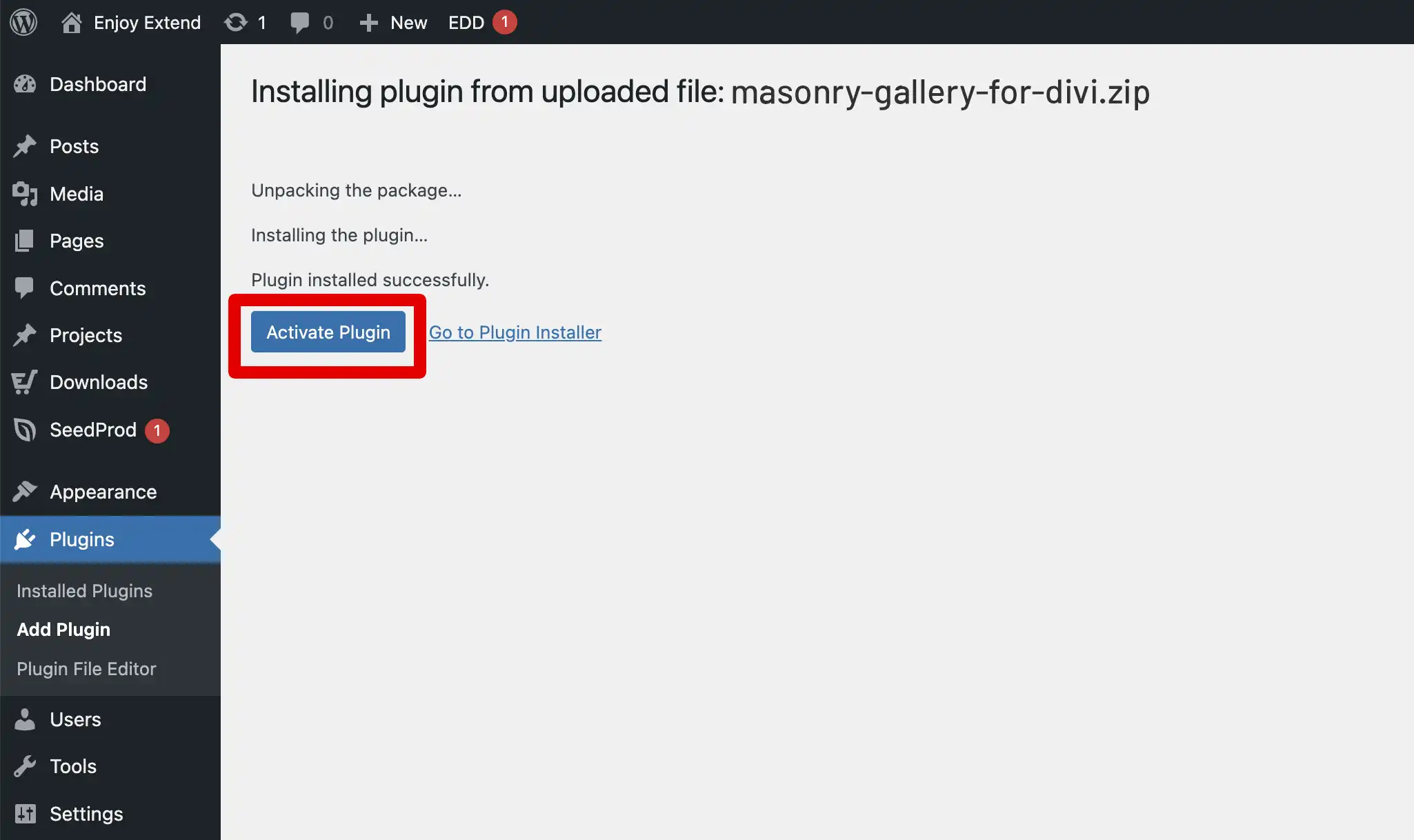
And that’s it! Now you can start creating galleries.
— Guide for
Masonry Gallery for Divi.
First you need to add images to the gallery.
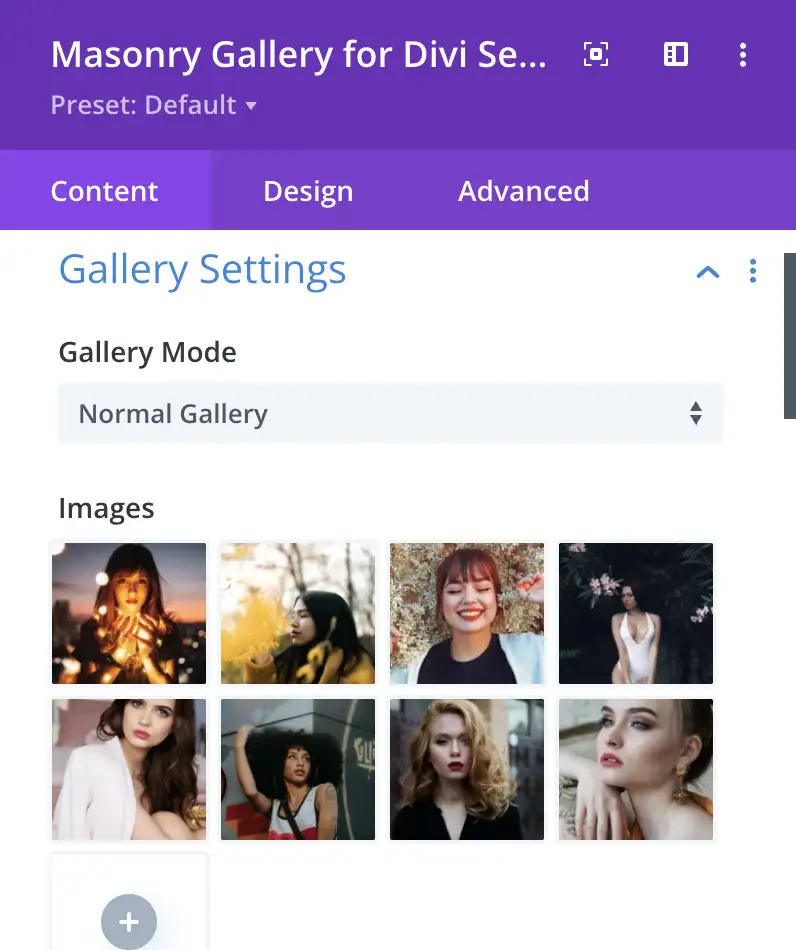
Setting columns and space between images – everything can be set individually according to the device.
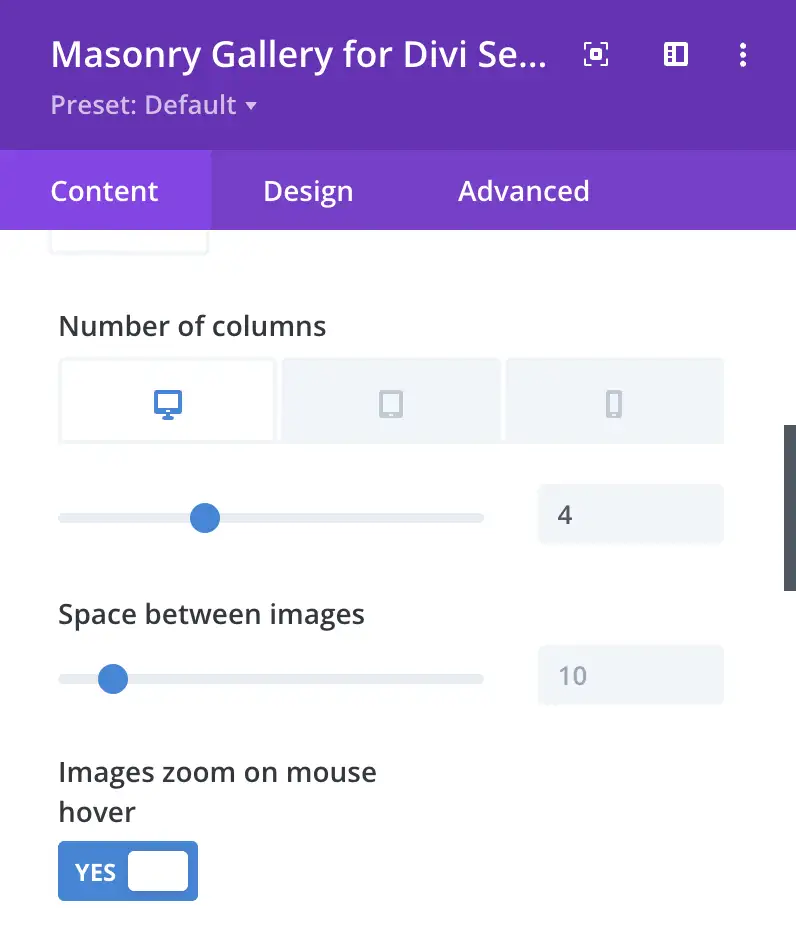
Now you can set the visual part of the gallery, it is possible to set the Overlay, Image customization, Gallery Filter, Gallery Pagination, Minimized Gallery Option, Lightbox, Sizing, Spacing, Border, Box Shadow, Filters, Transform, Animation
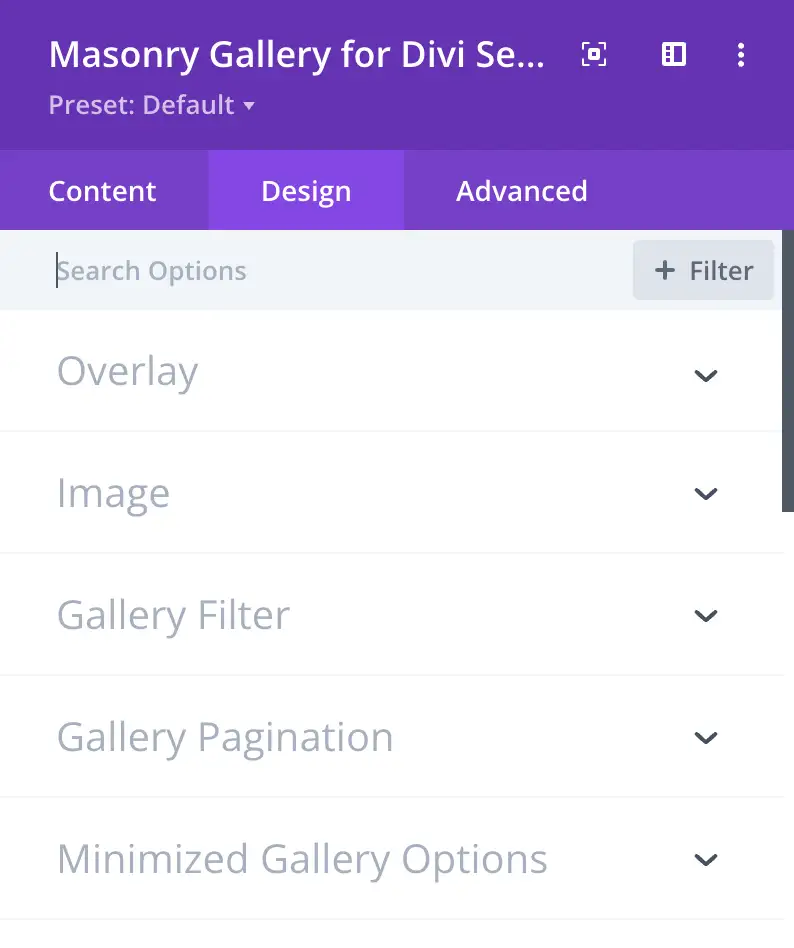
Done, now you can show the created gallery to the world.
— Guide for
Justified Gallery for Divi.
First you need to add images to the gallery.
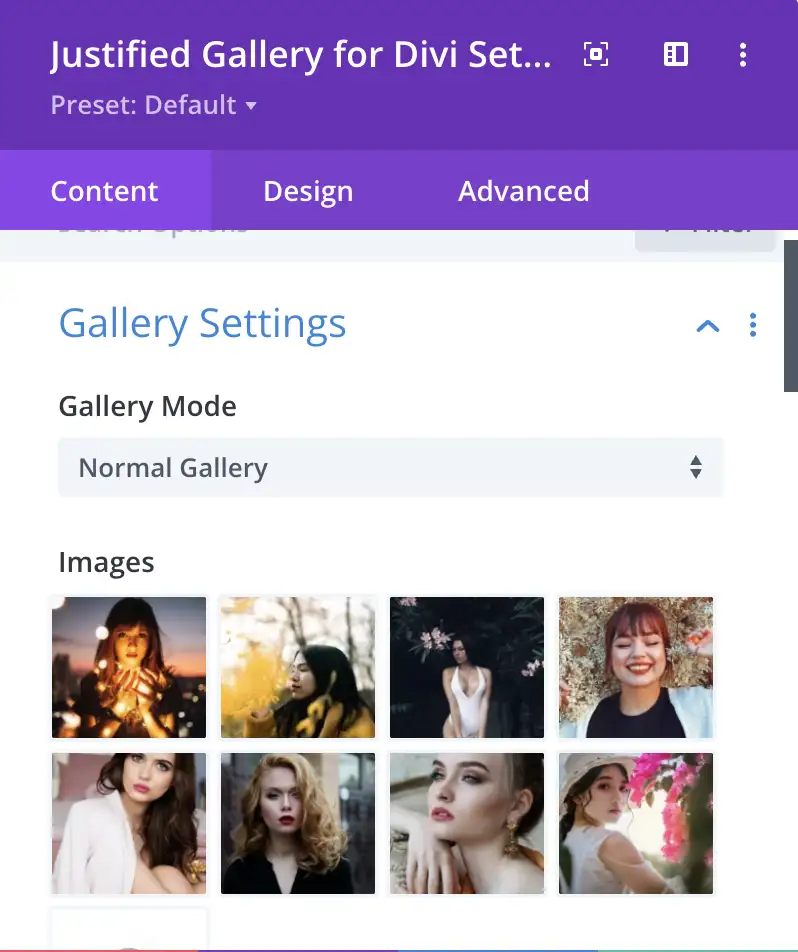
Setting rows and space between images – everything can be set individually according to the device.
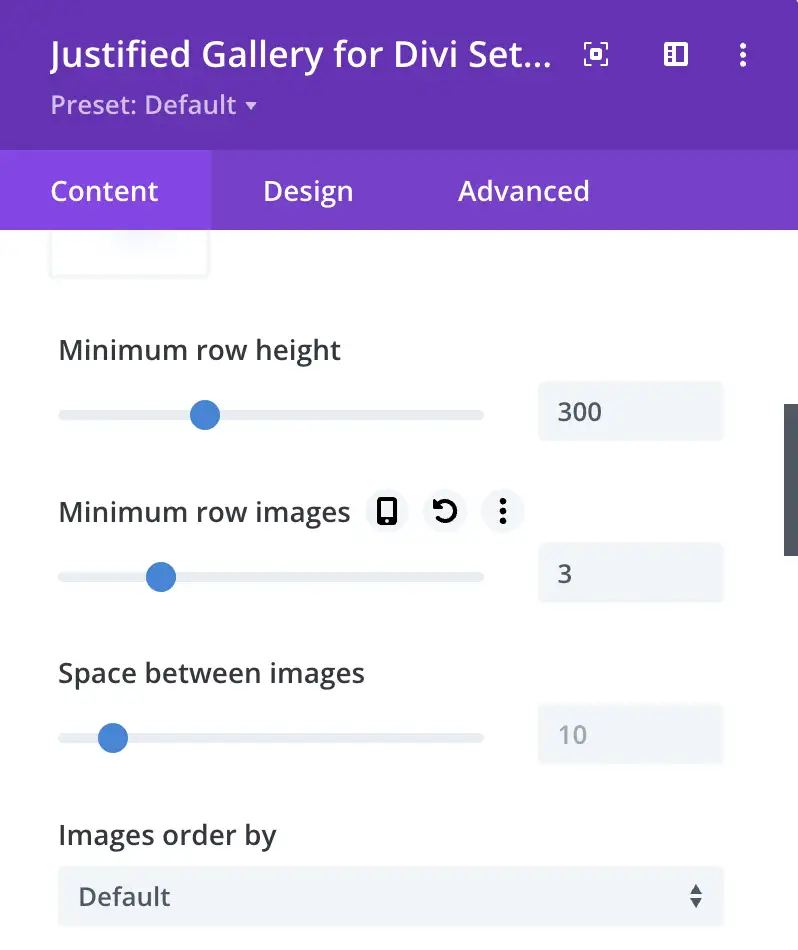
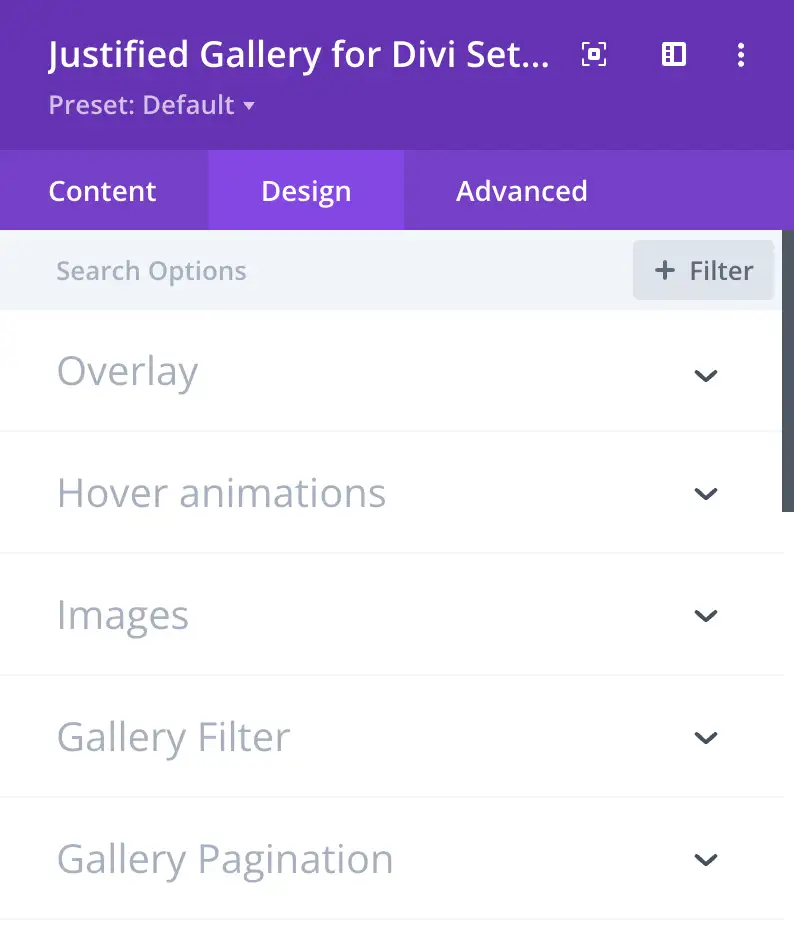
Now you can set the visual part of the gallery, it is possible to set the Overlay, Hover animations, Image customization, Gallery Filter, Gallery Pagination, Minimized Gallery Option, Sizing, Spacing, Border, Box Shadow, Filters, Transform, Animation.
Done, now you can show the created gallery to the world.